Here is a video summary of the Tools & Settings section
For more details, read on…
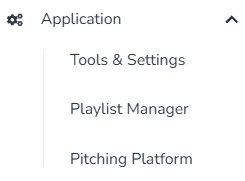
- Tools & Settings — Various tools and settings for the application.
- Playlist Manager — Group tracks into playlist for a pitch.
- Pitching Platform — Create a brand page that is accessed via email (for example: a publisher checking out your playlist for consideration).
Tools & Settings #
Full Application Backup #
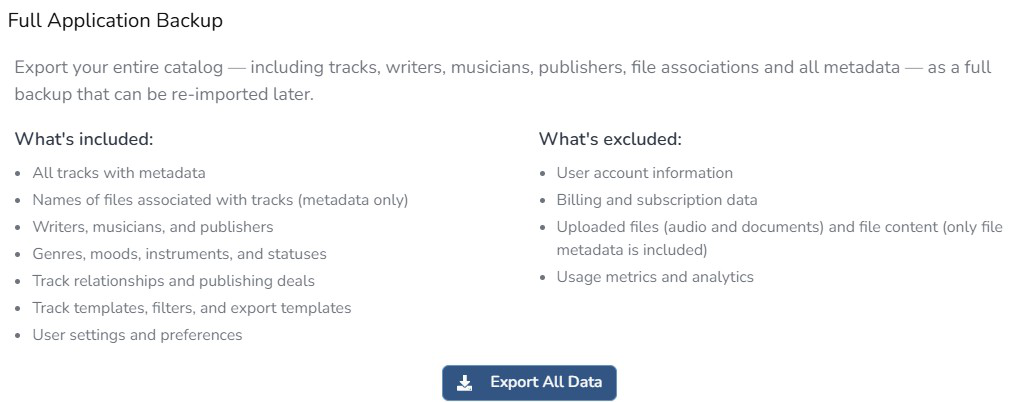
Full Application Backup lets you export your entire Composer Catalog database into a single file. This file can be used to restore your data, move it to a new account, or keep an offline backup for peace of mind. The file format is only for Composer Catalog. You will not be able to open up and read it.
How to Create a Full Application Backup #
- Click Application in the left-hand navigation menu.
- Find the Full Application Backup section.
- Click the Export or Backup button.
- Composer Catalog generates a single .cmpcat file containing all your catalog data.
- Download and save the file somewhere safe — an external drive, cloud storage, or both.
What Is Included and Excluded in a Backup #
| INCLUDED in Backup | NOT INCLUDED in Backup |
|---|---|
| All track metadata | User account information |
| Writers, musicians, publishers, artists | Billing and subscription data |
| Publishing deals and deal terms | Uploaded audio files |
| Track statuses, genres, moods, instruments | Uploaded documents |
| Import history and relationships | Usage metrics and analytics |
| All custom metadata vocabulary |
Your uploaded audio files and documents are NOT included in the backup. The backup file contains your catalog database — the metadata, relationships, and structure — but not the actual audio or document files. Back up your audio files separately using your regular file backup system.
Metadata Embedding #
Metadata Embedding is one of the most requested features in Composer Catalog history. When enabled, Composer Catalog automatically writes your track metadata directly into the audio file every time you download it — so your information travels with the file wherever it goes.
When you download a track with metadata embedding enabled, the audio file will contain your title, genre, mood, artist, album, publisher, description, and contact information — written directly into the file. Whatever you have selected will be written.
Step 1: Set Up Your User Profile #
Your contact information from the User Profile is embedded into the Comment section of each audio file.
- Click Application → Tools & Settings → User Profile.
- Fill in: Name, Email, Phone, and Website.
- Click Save
Note: Only Name, Email, Phone, and Website are currently used for embedding. Social media fields will be used for other things.
Step 2: Enable Metadata Embedding #
- Click Application (left nav) → Tools & Settings (left nav) → Metadata Embedding (left nav)
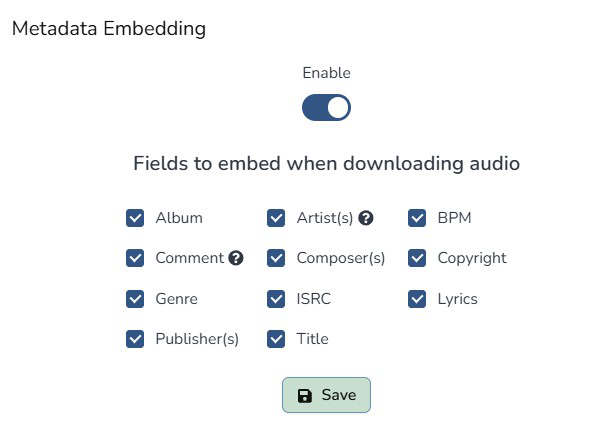
- Toggle the global enable to ON.
- When ON — metadata is embedded in every downloaded audio file.
- When OFF — files download clean without embedded metadata.
Step 3: Select Which Fields to Embed #
- On the Metadata Embedding page review the list of available fields.
- Check or uncheck each field based on your preferences.
- Click Save
Fields available for embedding: Title, Genre, Year, Album, Artist, Composer, Publisher, and Comment (which automatically includes your description, moods, and contact information).
Artist Field Logic: If an Artist is assigned to the track, that name appears in the Artist field. If no Artist is assigned, the track’s writer names are used — ensuring the Artist field is never empty.
Multiple Publishers: If a track has multiple publishing deals, ALL publisher names will be written into the Publisher field. Consider this before downloading files you plan to share.
Step 4: Download With Metadata Embedded #
- Navigate to your track and open the track detail view.
- Scroll to Track Files and click Download.
- A popup confirms that metadata will be embedded.
- Click Download — the file may take slightly longer as metadata is written into it.
Verifying the Embedded Metadata #
- Right-click the downloaded file on Windows → Properties → Details tab.
- You will see all embedded fields: Title, Artist, Genre, Album, Year, Comment, Publisher.
- Or open in any DAW — the file info panel will display the embedded metadata.
Reset Application #
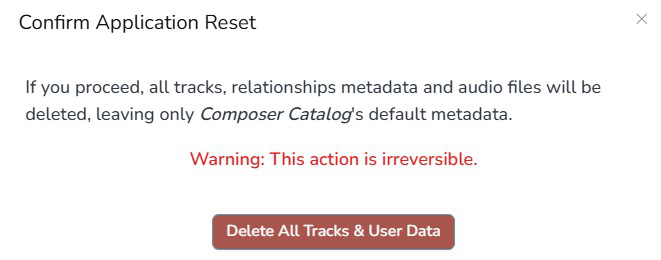
If for some reason you would like to reinitialize Composer Catalog (deleting all data you have in the database, but not cancelling your subscription…in other words, starting from scratch!), click on Reset Application. You will see this popup. If you are sure you want to do this, click on the red Delete All Tracks & User Data button.
Track List Settings #
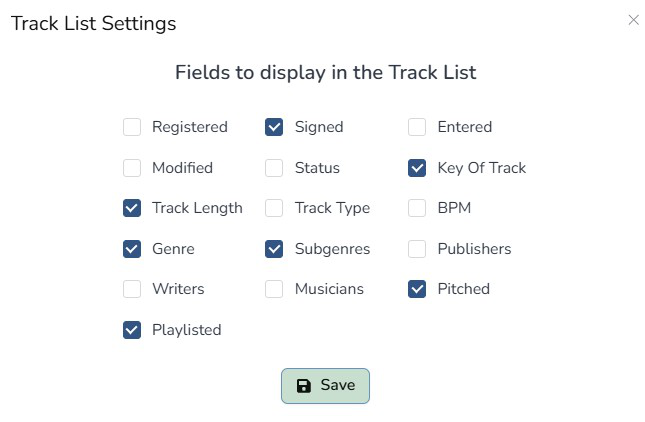
The track list settings controls what fields are displayed on each row in the track list on the main track list page.