
Export as CSV #
You will see different categories that you can export. You can check the header (Track Details, Track Classifiers, etc.) or get granular with specific fields. If you find yourself doing the same export again and again, create a template by clicking the green “Save Template” button.
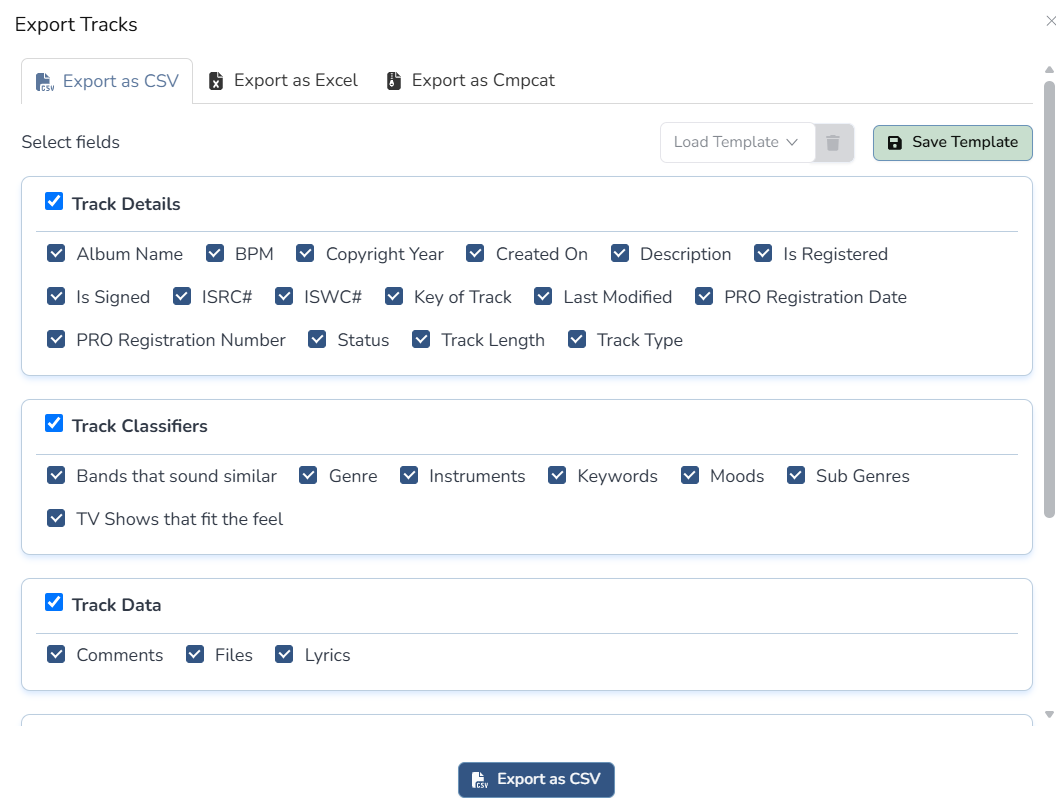
At the bottom, you will see this:
- Readable — formats relationship data in a human-readable way. Best when sending metadata to a publisher or music supervisor who needs to read and review it.
- Re-importable — formats relationship data in JSON (a code format). Not easy to read in a spreadsheet, but preserves all relationship data in a way that can be cleanly re-imported back into Composer Catalog.
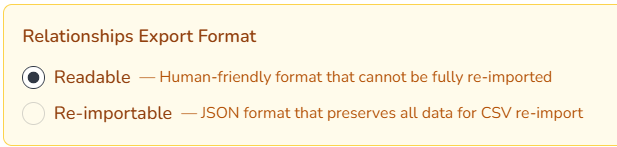
Note: Use Readable when the file is going to a human. Use Re-importable when the file is going back into Composer Catalog.
| Tip: Create a saved export template for each publisher you work with. Different publishers often want different metadata fields in their submissions — a saved template means you can generate a publisher-specific export in seconds. |
Saving Export Templates #
- Configure your field selections for a specific publisher or use case.
- Click Save Template.
- Name the template. Example: Publisher A Export.
- Click Save
- Next time you need to export for that publisher, load the saved template and all your field selections are already configured.


