Editing Tracks #
There are three ways to view and edit a track from the Tracks list:
Option 1 — View Track Details #
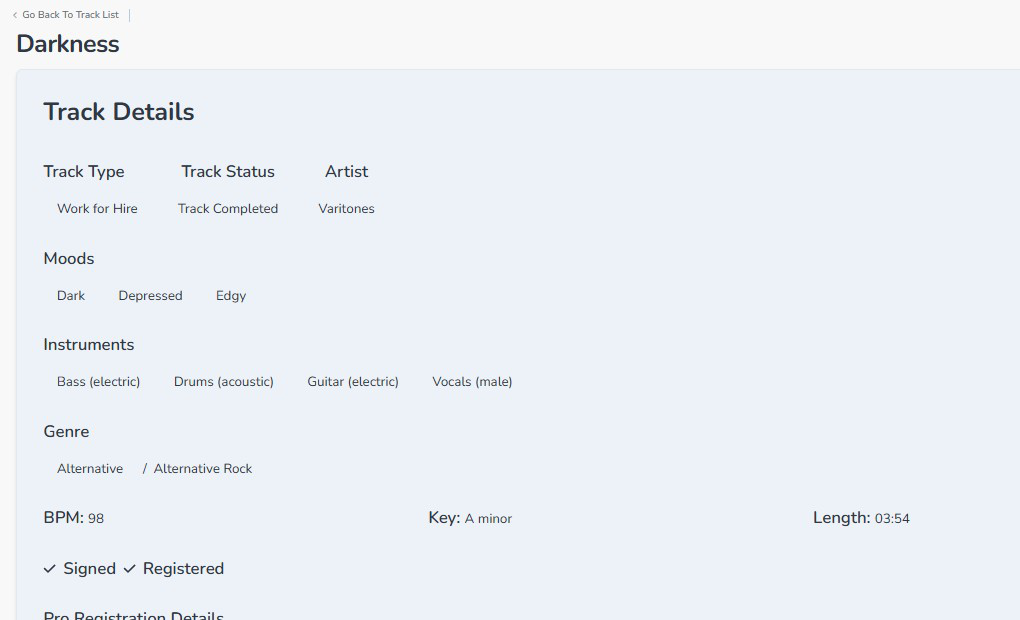
- Click on the track title (for example, you would click on “Darkness” in the image below)

- A detailed view opens showing all the information for that track in a single scrollable screen (the image below only shows a portion of data)
Option 2 — Edit Track Form #
- Click the Edit Track button on the track row (the yellow button circled in red below)

- The full track editing form opens with all sections available.
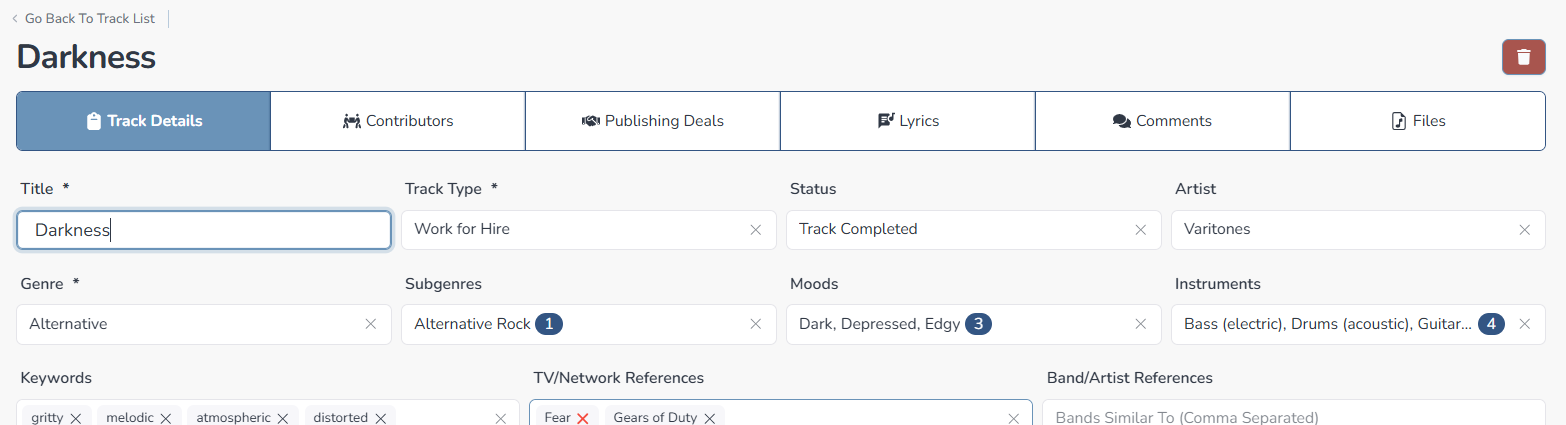
- Click on any section heading to expand and edit that section.
- Click Save in each section after making changes.
Option 3 — Edit By Selection (Bulk Edit) #
- Click the Edit By Selection button on the track row (the yellow button circled in red below)
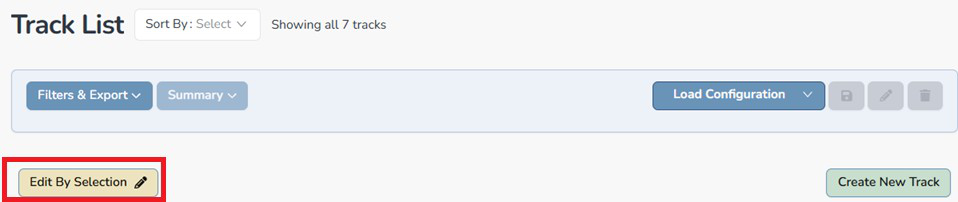
- Place a checkmark on the tracks that you would like to bulk edit and then click the yellow Edit Selected button. If you made a mistake or want to go back, you can click the red cancel button to the right. You can also click on the red Delete Selected button to delete bulk records.
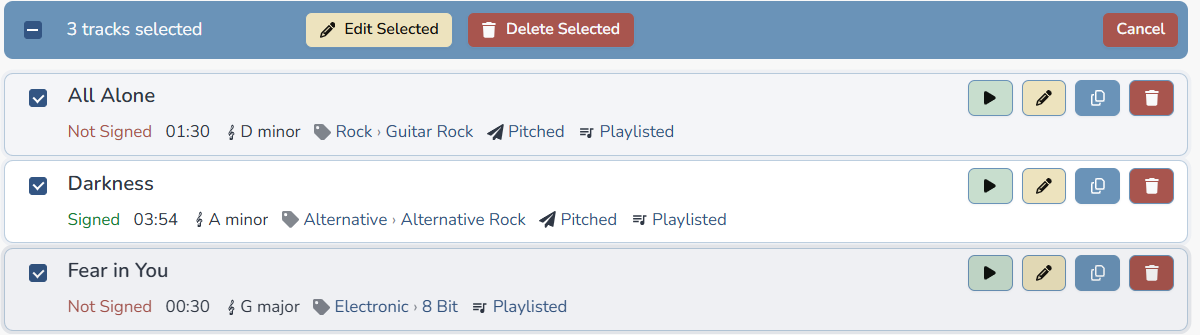
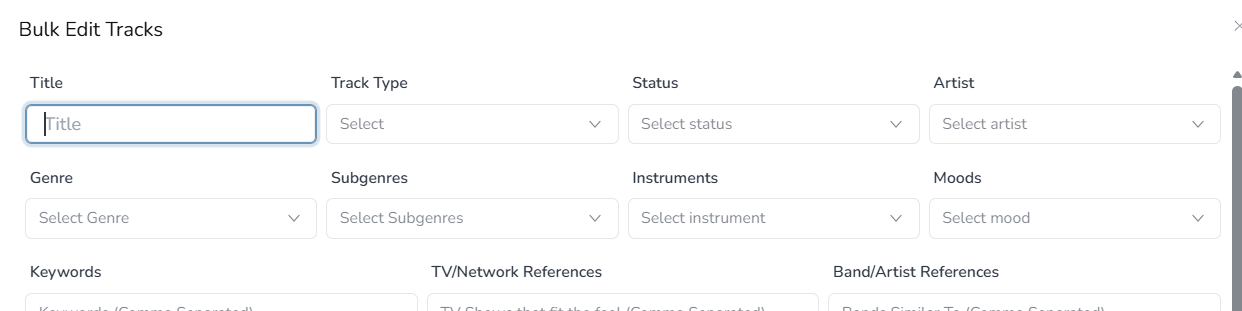
- Make your edits in the popup form and then press the green Continue button at the bottom of the form.
- After you click that, a popup will display, asking you to confirm. Click “yes” to confirm your edits. If you have changed your mind, click on the “back” button.

Bulk Edit through the Track Filter #
If you want to first filter a record set and then make a bulk edit, just set your filters and then click the yellow edit button in the track filter. See video below
How to Bulk Delete Records #
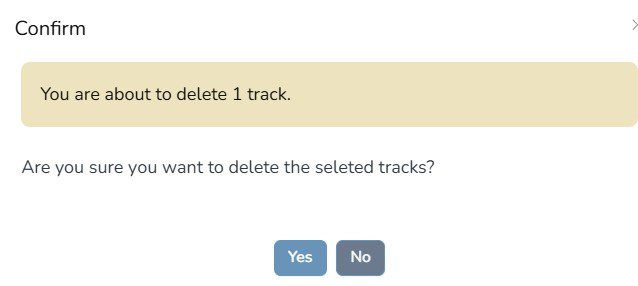
If you selected to delete records, you would check the records you want to delete and then confirm the deletion. You can do this in both within the track filter and the selection section below it.