
This feature allows you to attach documents directly to artists, publishers, musicians, and writers — and adds the ability to view which tracks are associated with any relationship record.
Attaching Documents to a Publisher #
Ideal for blanket publishing contracts that cover all your tracks with a publisher — attach once instead of to every individual track.
- Relationships → Publishers → Click the publisher name.
- The record shows the publisher’s name and all associated tracks.
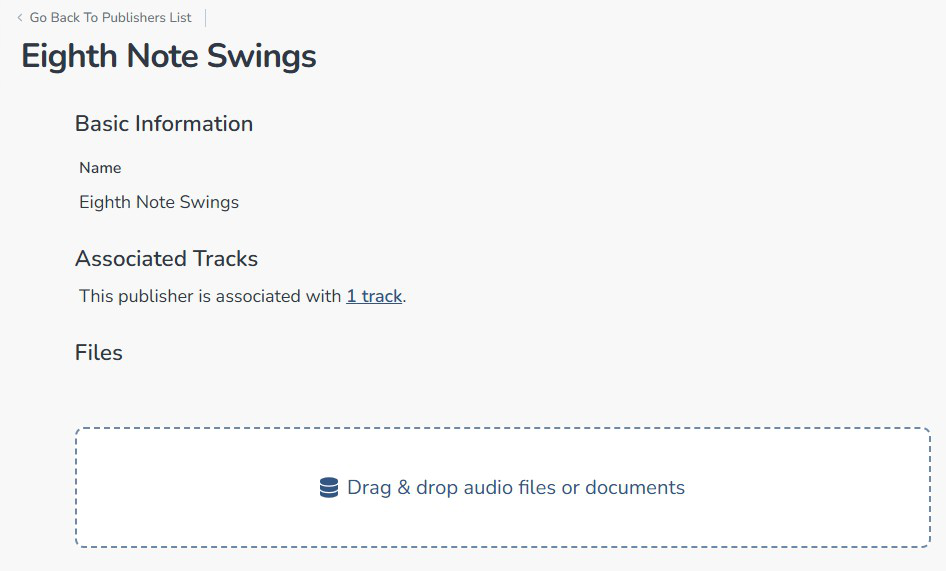
- Drag and drop your document onto the attachment area.
- The document is now attached directly to that publisher.
- NOTE: If any tracks have this publisher assigned to them, you will see a line that says “This publisher is associated with X tracks”. Clicking on the link will instantly set the track filter and show you the tracks associated with the publisher on the main track list page.
Attaching Documents to an Artist, Musician or Writer #
- Relationships → Musicians (or Writers/Artists) → Click the name.
- Drag and drop your document onto the attachment area.
- The document is now attached to that person’s record.
- NOTE: If any tracks have this artist/musician/writer assigned to them, you will see a line that says “This (relationship) is associated with X tracks”. Clicking on the link will instantly set the track filter and show you the tracks associated with that relationship on the main track list page.
Tip: Work-for-hire agreements are perfect for musician document attachments. Attach the agreement once to the musician’s record rather than to every track they played on.
Viewing Associated Tracks #
Clicking any publisher, musician, or writer now shows all tracks in your catalog linked to them. Click any track in that list to jump directly to it.
| Attach to the TRACK when… | Attach to the RELATIONSHIP when… |
|---|---|
| Documents specific to one track — a sync license, a stem delivery confirmation, or a track-specific lyric sheet. | Documents covering all tracks with that publisher/musician/writer — a blanket contract, a work-for-hire agreement, or a co-writing arrangement. |
The Problem This Solves #
Previously, if you had a blanket publishing contract with a publisher that covered all your tracks with them, the only way to store that contract in Composer Catalog was to attach it to each individual track. This was:
- Time consuming — attaching the same document repeatedly to every track.
- Storage inefficient — the same file stored multiple times.
- Hard to find — the contract buried in track files rather than attached to the publisher.
Now you attach it once to the publisher and it is there whenever you need it — no track-by-track uploads required.
Before and After Comparison #
| Approach | Storage Used | Effort | Best For |
|---|---|---|---|
| Old: Attach to each track | File stored once per track — multiplied many times. | High — repeat uploads. | Track-specific documents only. |
| New: Attach to Relationship record | File stored once — no duplication. | One upload — done. | Blanket contracts, agreements covering all tracks with a publisher. |
How to Attach a Document to a Publisher #
- Click Relationships in the left-hand navigation menu.
- Click Publishers
- Click on the publisher name you want to attach a document to — for example, Catchy Tunes.
- The publisher record opens showing the publisher’s name and any tracks associated with them.
- Drag and drop your document file onto the document attachment area in the publisher record.
- The document uploads and is now attached directly to that publisher.
| Tip: Use this for blanket publishing contracts — the kind that cover all your tracks with a publisher rather than individual track deals. One upload, always accessible right from the publisher record. |
How to Attach a Document to a Musician #
- Click Relationships in the left-hand navigation menu.
- Click Musicians
- Click on the musician’s name you want to attach a document to.
- The musician record opens showing their name and associated tracks.
- Drag and drop your document onto the attachment area.
- The document uploads and is now attached to that musician record.
| Tip: Work-for-hire agreements are a perfect use case for musician document attachments. If a musician signed a work-for-hire agreement covering all the sessions they did with you, attach it once to their record here rather than to every individual track they played on. |
How to Attach a Document to a Writer #
- Click Relationships in the left-hand navigation menu.
- Click Writers
- Click on the writer’s name.
- The writer record opens showing their name and associated tracks.
- Drag and drop your document onto the attachment area.
- The document is now attached to that writer record.
What Types of Documents Can You Attach #
You can attach any document type to a relationship record. Common examples include:
- Publishing contracts — blanket deals covering all tracks with a publisher.
- Work-for-hire agreements — with musicians who performed on multiple tracks.
- Co-writing agreements — with writers you regularly collaborate with.
- Split sheets — writer percentage agreements for ongoing relationships.
- NDA or confidentiality agreements.
- Artist management agreements.
- Any other paperwork associated with an ongoing relationship.
| Note: Documents attached to a relationship record (publisher, musician, or writer) are separate from documents attached to individual tracks. Both storage locations are available — use whichever makes more sense for each document. |
View Associated Tracks From a Relationship Record #
Where to find it: Relationships → Publishers / Musicians / Writers → Click any record
When you open any publisher, musician, or writer record, you can now see all the tracks in your catalog that are associated with that person or organization.
How It Works #
When you click on any record in the Publishers, Musicians, or Writers sections, the record view shows:
- The name and basic information for that publisher, musician, or writer.
- A list of all tracks in your catalog that are linked to them.
Clicking on any track in that list takes you directly to that track in your catalog — so you can quickly jump from a publisher record to any of their associated tracks without having to search.
Practical Uses for This Feature #
PUBLISHERS: Click on a publisher to instantly see every track you have signed with them. Useful for reviewing your catalog with that publisher, preparing for renewal discussions, or verifying which tracks are under that deal.
MUSICIANS: Click on a musician to see every track they performed on. Useful for verifying session credits, checking work-for-hire coverage, or seeing the full scope of your collaboration with them.
WRITERS: Click on a writer to see every track they have writing credits on. Useful for PRO registration verification, co-writer royalty tracking, or reviewing your writing history with a collaborator.
| Tip: Use the publisher track view before a meeting or call with a publisher. One click shows you exactly which tracks you have with them, how many, and gives you quick access to any track details you might need to reference. |
When to Attach to a Track vs a Relationship Record #
| Attach to the TRACK when… | Attach to the RELATIONSHIP when… |
|---|---|
| The document is specific to that one track. | The document covers all tracks with that publisher, musician, or writer. |
| A sync license for a specific placement. | A blanket publishing contract. |
| A stem delivery confirmation for a specific track. | A work-for-hire agreement with a session musician. |
| Track-specific session notes or instructions. | A co-writing agreement with a regular collaborator. |
| A lyric sheet for that track only. | An NDA covering your entire working relationship. |


