
Step 4: Publishing Deals #
Click the “+” button to add a new deal. A popup will appear to allow you to enter the new deal.

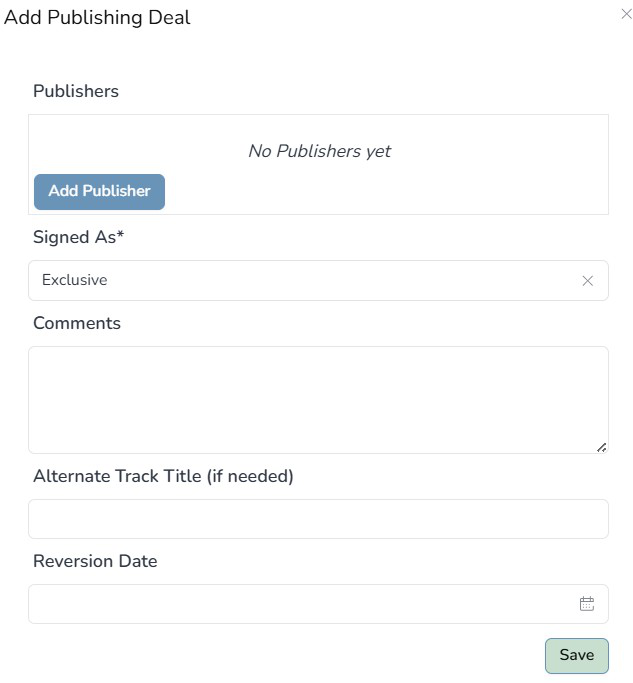
- Click “Add Publisher” button to add a publisher. If the publisher is already in your catalog, select them from the list. If not, click “Add New” and enter their information.
- Select deal type (Signed As): Exclusive, Non-Exclusive, or Work for Hire.
- Exclusive — one publisher has sole rights to license this track.
- Non-Exclusive — you can place this track with multiple publishers simultaneously.
- Work for Hire — the publisher or production company owns the copyright.
- Add any comments about this deal.
- Enter any Alternate Track Titles if the publisher uses a different title for this track.
- Enter a Reversion Date if your contract includes one — this is the date when rights return to you if the publisher does not meet minimum performance thresholds.
- Click Save
Adding Multiple Publishers to One Deal #
Some deals involve co-publishing arrangements where two publishers split the rights. To add multiple publishers to one deal:
- Click the “+” button a second time after adding the first publisher.
- Select the second publisher.
- Set the percentage split for each publisher.
- Percentages must add up to 100% across all publishers in the deal. Example: 50% / 50% for a co-publishing split.
- Click Save


