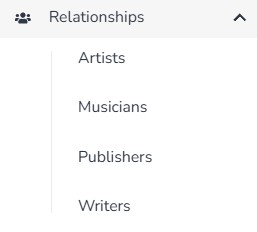
The Relationships section manages the people and organizations associated with the tracks in your catalog. There are four subsections: Artists, Musicians, Publishers, and Writers. Check out the video summary below.
This section shows every artist who is attached to any track in your catalog. You can add, edit, or remove artists from here without having to go into an individual track. The Artist field is for cases where a track was written for or performed by a specific artist.
Examples:
You co-wrote a track that a specific artist recorded and released.
You are pitching a track as an artist rather than as a composer.
You want to track which artist performed a specific version of a song.
Add a new artist by clicking the blue Add button and entering their information.
Edit an existing artist by clicking on their name or the yellow edit button.
Remove an artist by clicking the red delete button.
Note: Removing an artist from the Relationships section may affect tracks they are currently attached to. Review their track associations before removing.
The Artist field plays an important role in the metadata embedding feature. When you download a track with metadata embedding enabled:
If an Artist is assigned to the track — that artist name is written into the Artist field of the downloaded audio file.
If no Artist is assigned — the track’s writer names are used in the Artist field instead.
Note: This ensures the Artist field in the embedded audio file is never empty — it always contains either the assigned artist name or the composer/writer names.
Tip: If you are pitching a track as an artist — for example for an artist project or a co-write deal — fill in the Artist field before downloading to make sure the correct name appears in the audio file metadata.
This section shows every musician who is attached to any track in your catalog. You can add, edit, or remove musicians from here without having to go into an individual track.
Add a new musician by clicking the blue Add button and entering their information.
Edit an existing musician by clicking on their name or the red edit button.
Remove a musician by clicking the red delete button.
See what musicians are linked to each track
Note: Removing a musician from the Relationships section may affect tracks they are currently attached to. Review their track associations before removing.